
Configuring Batch integration plug-in from Google Chrome
Follow the below steps to install PaperSave Batch Integration Plug-in:
1) Open Chrome web store and search for "PaperSave 7 Batch integration" or Enter the URL given by PaperSave Team to install Chrome Plugin:
Sample URL:https://chrome.google.com/webstore/detail/papersave7-batch-integrat/ekaeipfbpbiebnlioffpapkflflmflfj
2) Now, click on Add to Chrome and wait till it gets installed successfully.
3) Once installed, Click on Ellipse icon > More Tools > Extensions.

4) Now, enable PaperSave 7 Batch Integration Plug-in and click on Details button as shown below

5) Click on Extension options as shown below and Batch integration dialog box appears where you can configure customizable shortcuts.


Note: Please make sure your shortcut does not conflict with other default (browser or windows) shortcuts.
6) Enter PaperSave API Root URL (for example, 12345t.app.papersave.com). Company Name field is optional. Hence, you can enter the value if you remember the exact name else skip this field and click on Save button.

Tip: When you perform any PaperSave operation in Revenue batch and only one company is configured, then that single company name will automatically get mapped in the Company Name field of the batch integration dialog box. Now, in case you have multiple companies, a dialog box appears as shown below where you can select your desired company from the drop-down and save it, and then it is automatically mapped with the batch integration extension.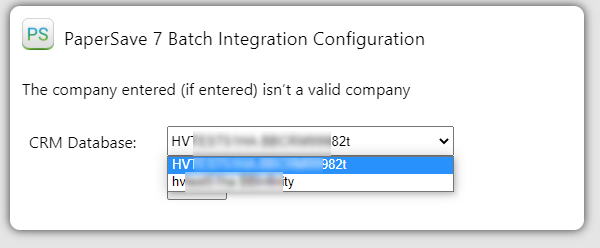
Note: This feature will work with only one Company at a time.
Example: If two companies are registered as Company A and Company B and if the plugin is installed for Company A, it will work with Company A only. If you have logged in with Company B, the plugin will not work.
7) Now, when you open Blackbaud CRM in browser, it validates BBCRM URL and then checks for PaperSave Root URL and if you have not set PaperSave root URL yet, it gives prompt message as shown below for setting PaperSave Root URL

- If you click OK it redirects you to batch integration dialog box and if you don’t want to define or don't know the Root URL, then you can define disable PaperSave for session by using Disable PaperSave for Current Session option and it gets disabled for current session.
8) When PaperSave Batch Integration Plugin gets installed successfully, PaperSave options are displayed as the add-in buttons in Home tab of Revenue Batch and a separate PaperSave tab is also added to the batch as shown below.

Note: While clicking on Add Document button, a prompt may appear as below showing that ‘PaperSaveID’ field needs to be added to Batch Template. Click here to know more about it.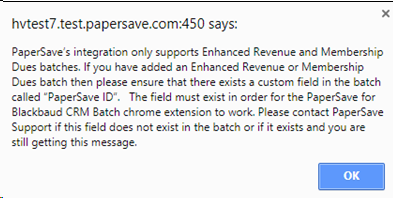
9) Now, click on Add Document button or Press Alt+A or your customized shortcut to add the documents and it will open Add A New PaperSave Document window as shown below:

- And click on Show Document button or Press Alt+S or your customized shortcut to view the added documents and it will open PaperSave's Document Display window as shown below:
